How to display your Wall of Love in a RingCentral Event
Install the Testimonial app in RingCentral Events and add your Wall of Love as an App Area.
Install the Testimonial app in RingCentral Events to add a Wall of Love App Area to your event venue. No embed code is required.
Note: The Testimonial app is only available to RingCentral Events customers. You need a RingCentral Events account to use this integration.
How it works
The Testimonial app for RingCentral Events adds a dedicated App Area in your event venue. Attendees can view your Wall of Love during the event.
Install the Testimonial app in RingCentral
Install the Testimonial app from the RingCentral App Store: https://apps.events.ringcentral.com/apps/testimonial
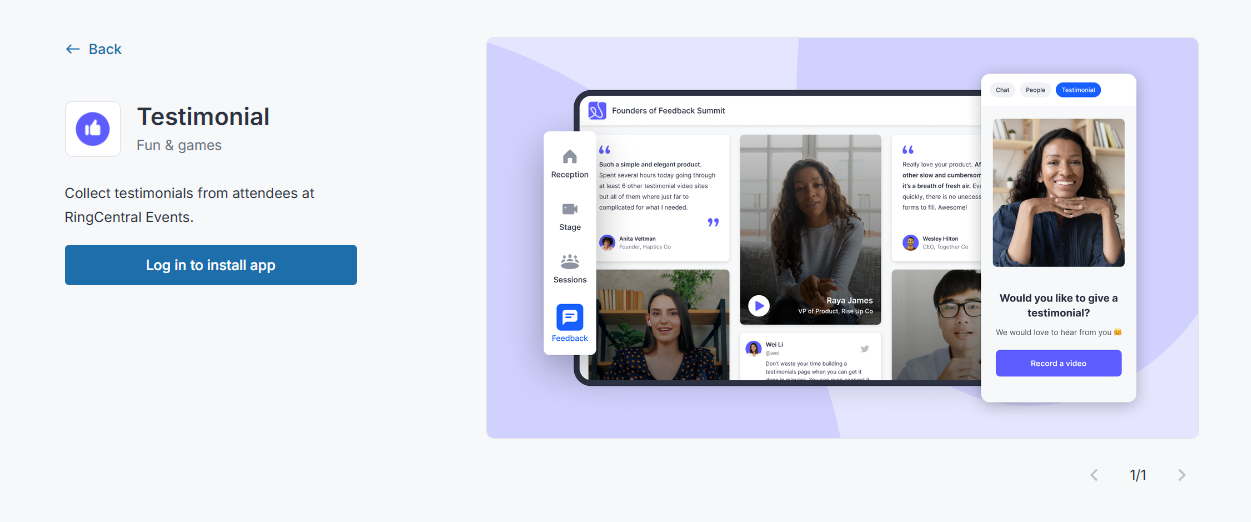
Note: If the app is not installed, it will not appear in the RingCentral configuration dropdown in the steps below.
Show testimonials from the Wall of Love
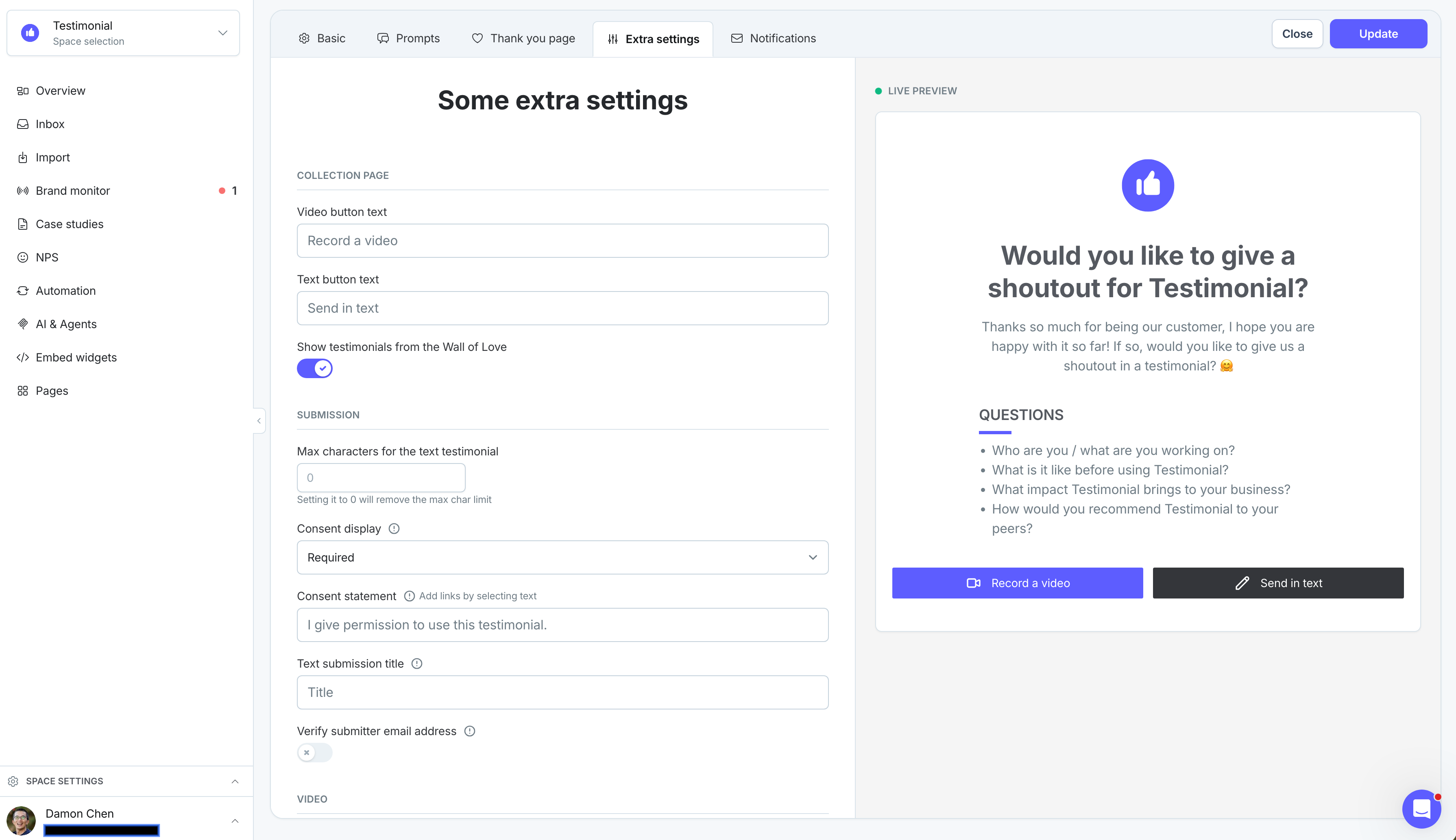
Open the Space from your Testimonial dashboard.
In the Space settings, make sure Show testimonials from the Wall of Love is toggled on.
Find your Space ID
Open your Wall of Love public page. The URL looks like:
https://testimonial.to/[Space ID]/allCopy the Space ID — the text between
testimonial.to/and/all.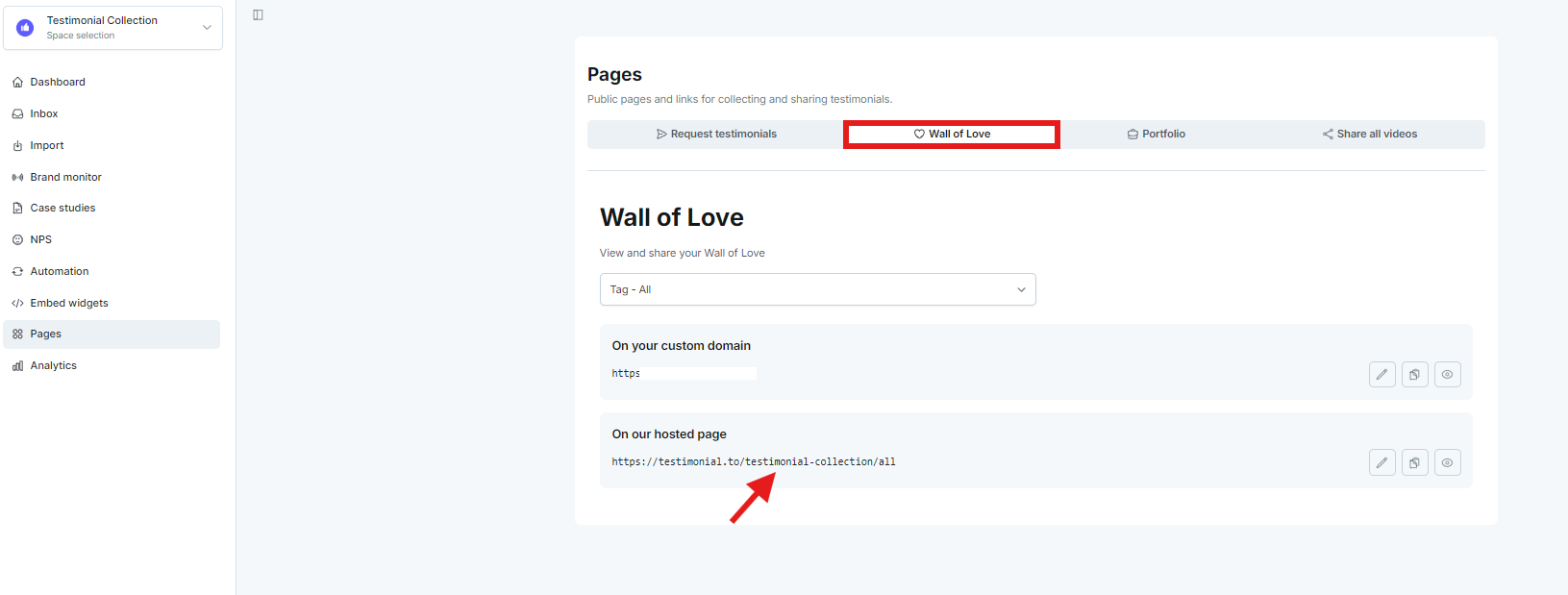
Configure the app in your RingCentral event
Open your event in RingCentral and go to Event Dashboard → Venue → App.
Under Configuration, select Testimonial from the dropdown.
Under Setup, paste the Space ID you copied.
Make sure App Area is enabled for your event. See How to enable App Area.
Customize the App Area label
Under Customize, set a Menu Label for how the app area appears to attendees (for example, Feedback, Testimonials, or Love).
Choose an Icon from the dropdown.
Click Save.
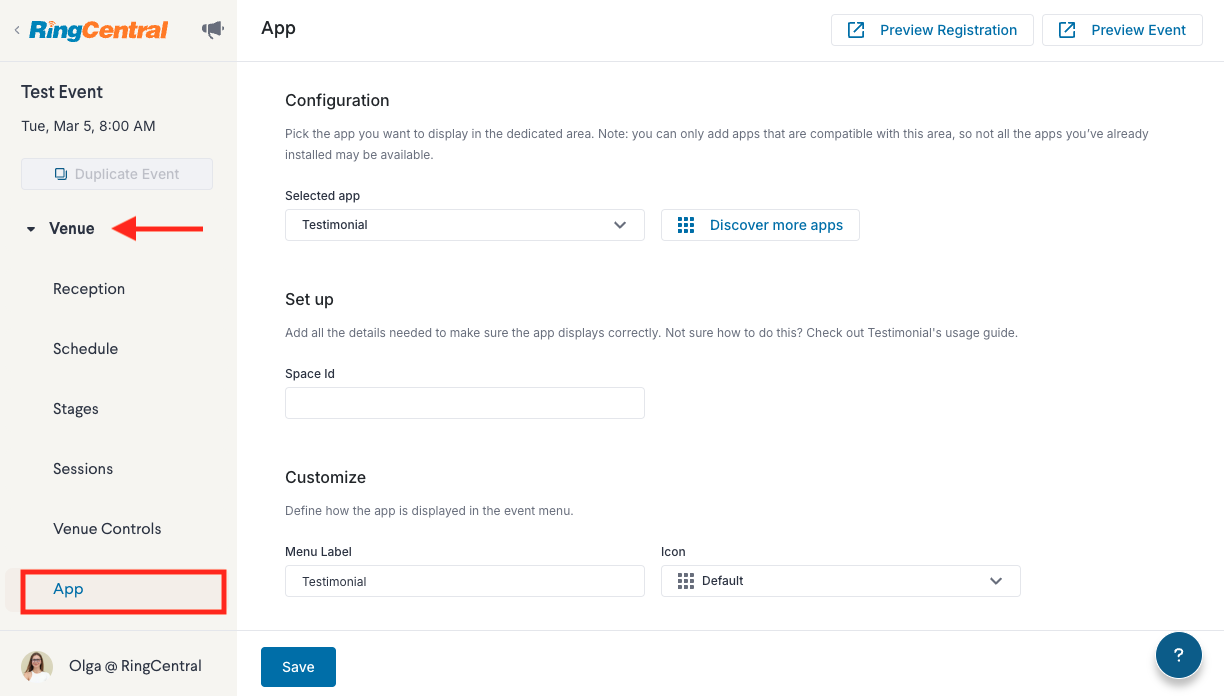
Attendees see the Testimonial app area in the left panel of your event venue.
Related: Add testimonials to your Wall of Love · Customize your Wall of Love
Need help? Message us in the chat widget.