Testimonial Email Assistant (T.E.A)
BCC T.E.A. on a customer email to schedule a personalized testimonial request. Ultimate and Ultimate+.
The Testimonial Email Assistant (T.E.A.) sends a personalized testimonial request after you email a customer. Add T.E.A.’s unique address and a customer snippet to that email, and the follow-up is scheduled for you.
Note: T.E.A. is available on Ultimate and Ultimate+.
How it works
Send your regular confirmation email to the customer.
Put T.E.A.’s unique email address in the To or BCC field, and include a snippet with the customer’s name and email in the message.
T.E.A. schedules a personalized testimonial request using your delay settings.
Set up T.E.A.
1. Open T.E.A. in the Space
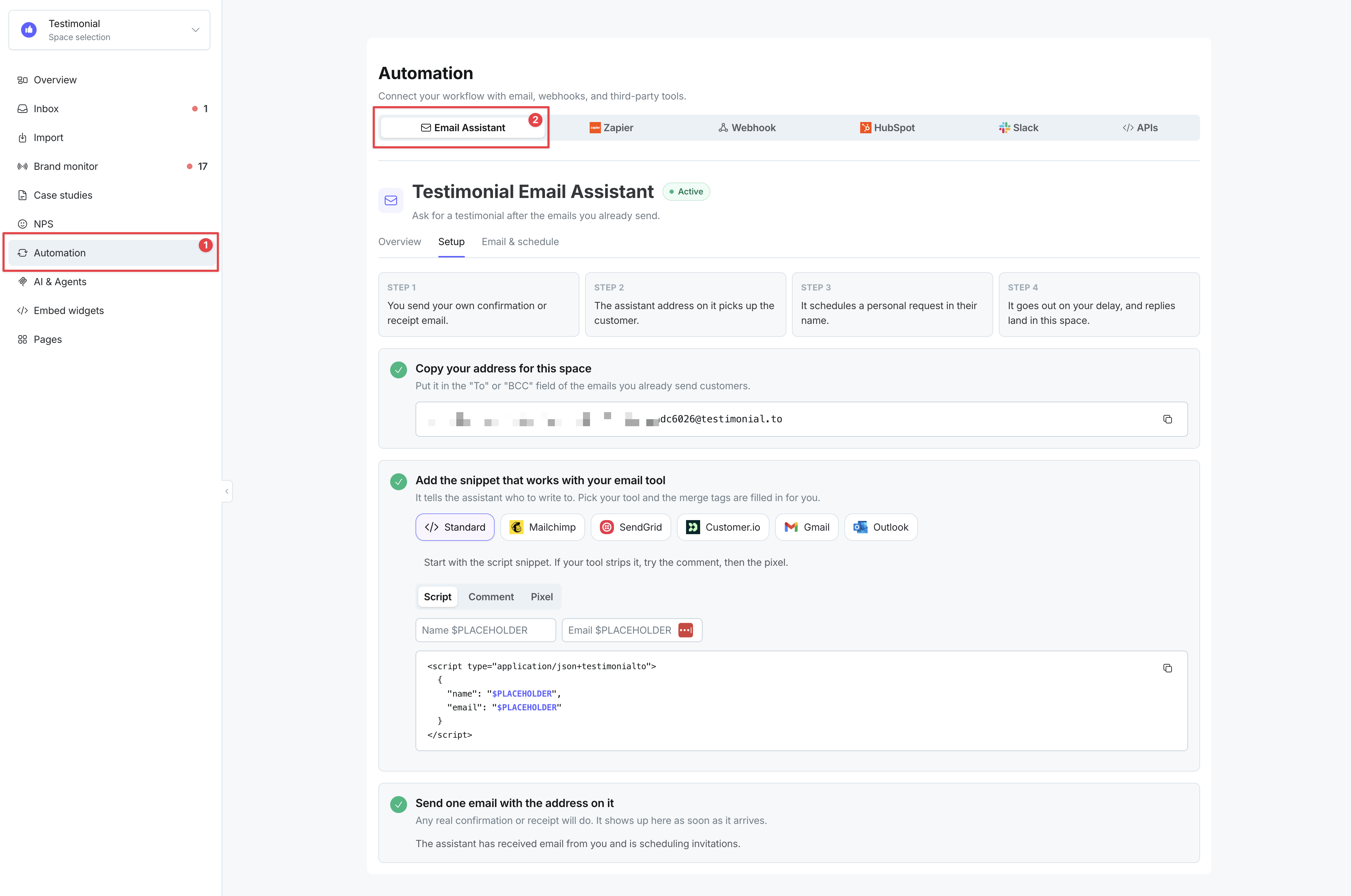
In the Space dashboard, click Automation in the left sidebar. The email assistant opens by default.
The page uses three tabs: Overview, Setup, and Email & schedule. If invitations are not flowing yet or the email snippet is not set up, T.E.A. opens on Setup. After invitations start going out, it opens on Overview.
Status appears as a pill next to the page title. While something still needs attention, Setup also shows a banner with the next step.
2. Finish Setup
Open the Setup tab.
Choose your email tool (or leave Standard). Choosing a tool selects the matching snippet and fills the merge tags for you. Standard still uses the script snippet with
$PLACEHOLDERvalues for Spaces that do not pick a tool.Under Sent Delay, choose when to send the follow-up: immediately, or after 1, 3, or 7 days. Edit the email content as needed.
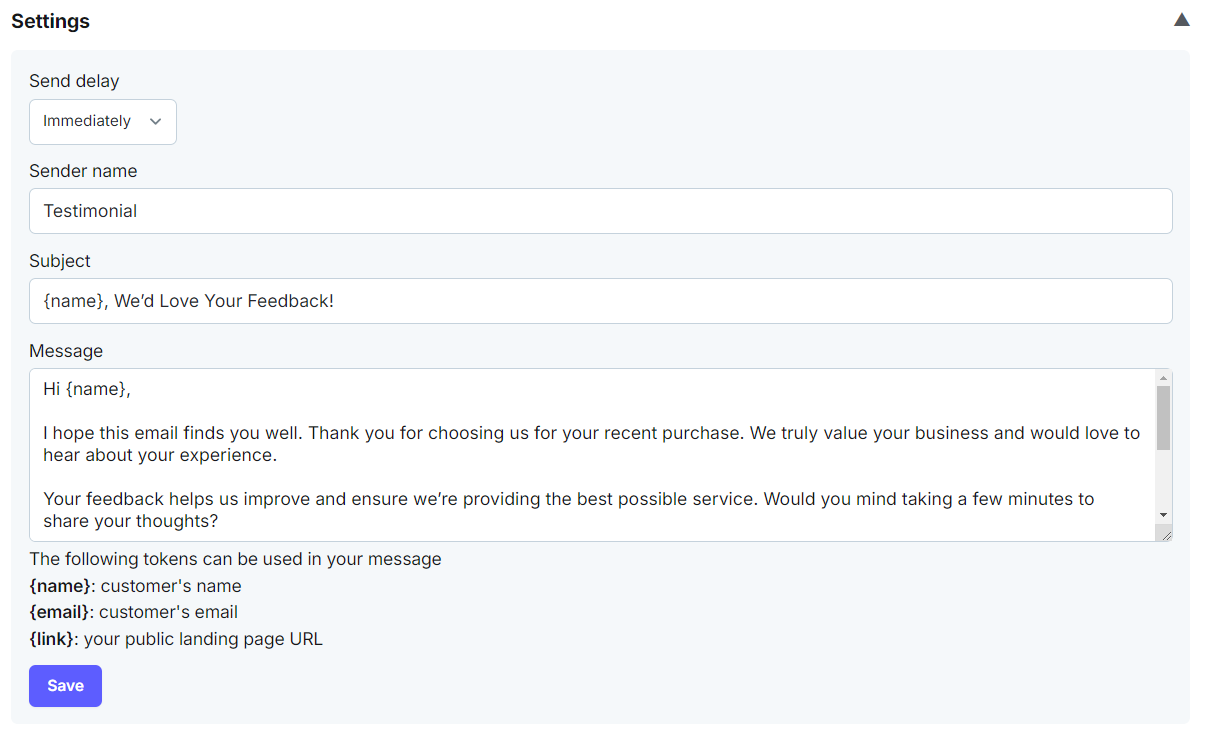
Save your changes.
3. Copy the T.E.A. address and add customer details
On Setup, copy the unique T.E.A. email address for this Space.
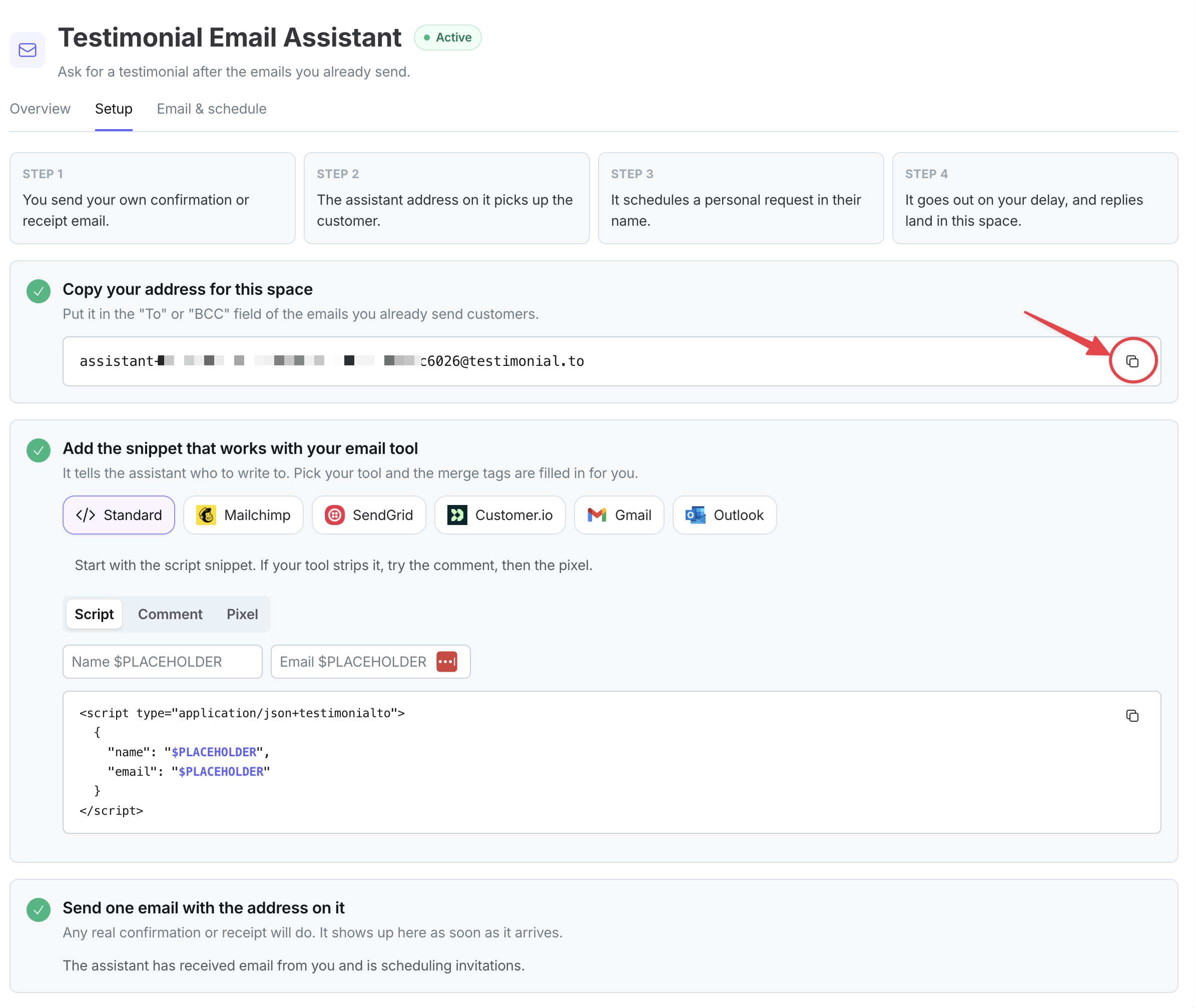
Put that address in the BCC field when you email the customer. T.E.A. can then pick up the details without changing the customer-facing message.
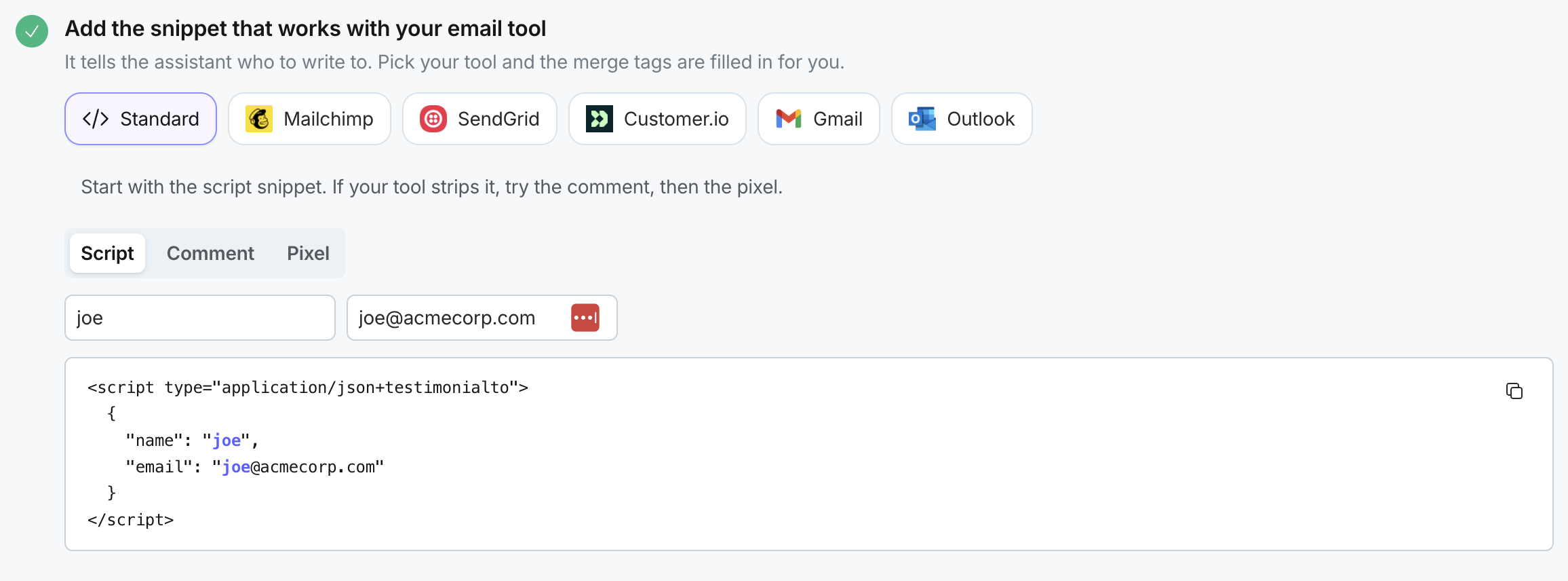
In the email body, include the snippet for your email tool. If you chose a tool in Setup, merge tags are already filled. For Standard, replace the
$PLACEHOLDERvalues with the customer’s name and email:Script
<script type="application/json+testimonialto"> { "name": "$PLACEHOLDER", "email": "$PLACEHOLDER" } </script>Comment
<!--testimonial-tea-snippet { "name": "$PLACEHOLDER", "email": "$PLACEHOLDER" } -->Pixel
<img src="https://testimonial.to/?testimonial-tea-snippet&name=$PLACEHOLDER&email=$PLACEHOLDER" />Note: On Standard, you can fill in the Name and Email fields in the dashboard first so the snippet updates automatically before you copy it.
Send the email.
Email & schedule
Open the Email & schedule tab to manage delay settings, the invitation log, and imports.
The invitation email customers receive uses the same card-style layout as other Testimonial notification emails, with a styled submit link. The body is still your own copy.
Test send sends a sample invitation to the signed-in user’s own account email only. It does not add a row to the invitation log and does not use monthly quota. There is a short cooldown between test sends.
Export and Import sit on the invitation log (not in a separate accordion section).
Export log
From the invitation log on Overview tab, export a CSV of every testimonial request T.E.A. created, scheduled, or sent — including customer information, timestamps, and email statuses.
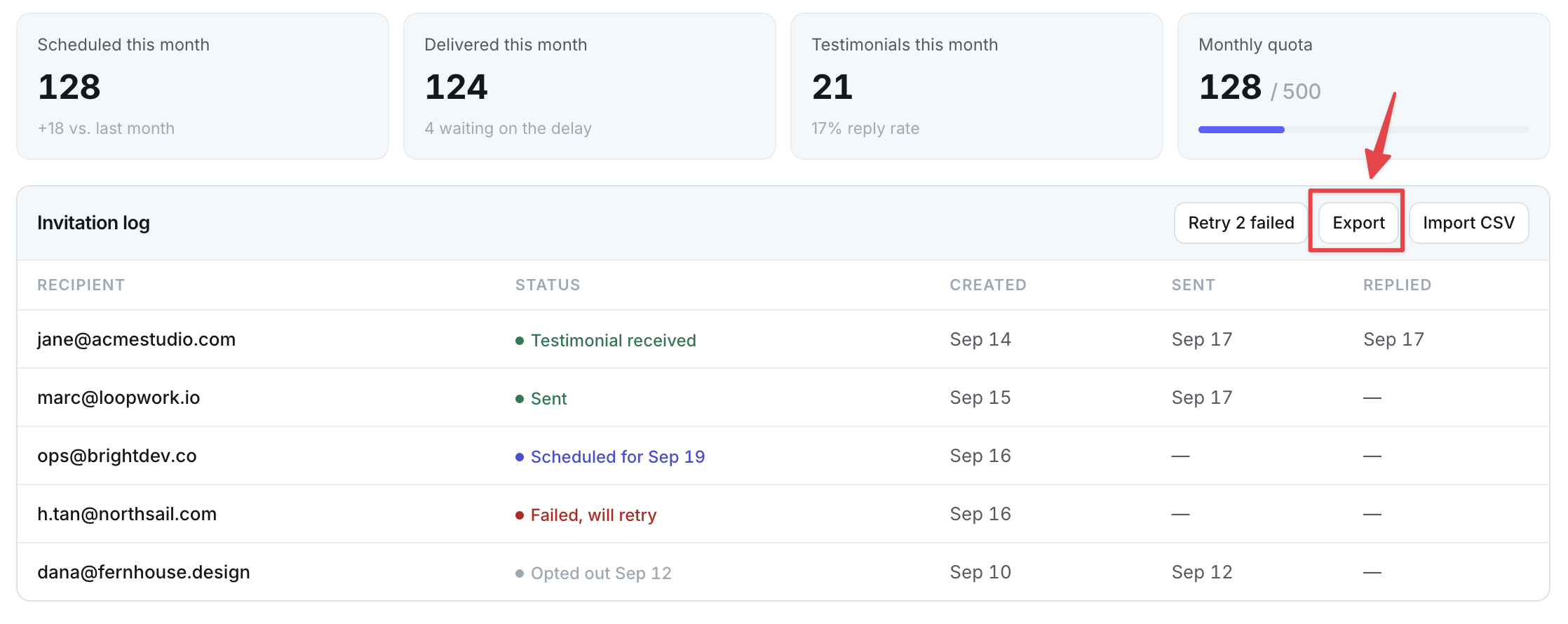
The activity log table includes a Forwarded column before Date created. It shows when the forward was received in Gmail, or “-” if that time is unknown.
The CSV export includes a matching Date Forwarded column with the same value (an ISO date when present, empty when not).
Use these columns to tell when you forwarded each email versus when T.E.A. logged or processed it (Date created). That is especially useful when backlog processing stamps many rows with today’s Date created.
The activity log shows clearer statuses, including Expired, Failed, and Over quota. Existing statuses that still apply remain available.
Older invitations past the retention window show as Expired. You can retry them with the Retry controls.
Retry failed, expired, or over-quota invitation rows one at a time, or retry all for the space. Retries use your remaining monthly quota.
Check that T.E.A. is working
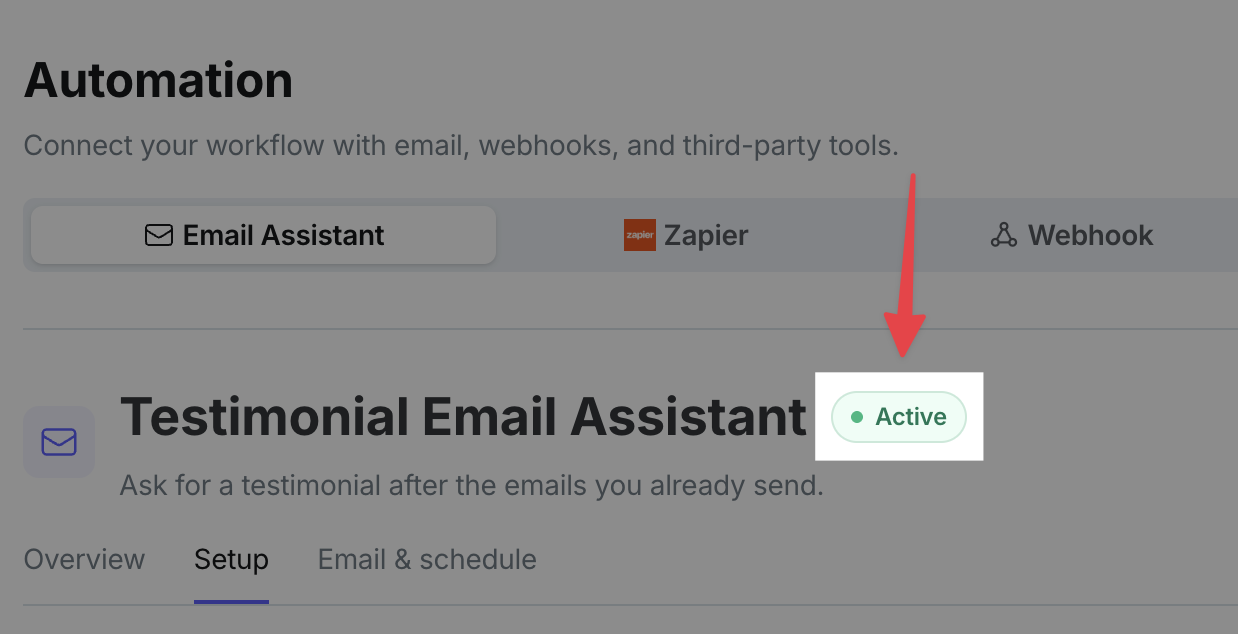
If everything is connected and we receive your forwarded email and we can actually send the email from our backend, we will show the Active badge next to Testimonial Email Assistant
On Overview, Scheduled and Delivered are separate tiles. Scheduled reflects scheduled invitations and quota usage. Delivered reflects emails that were actually sent.
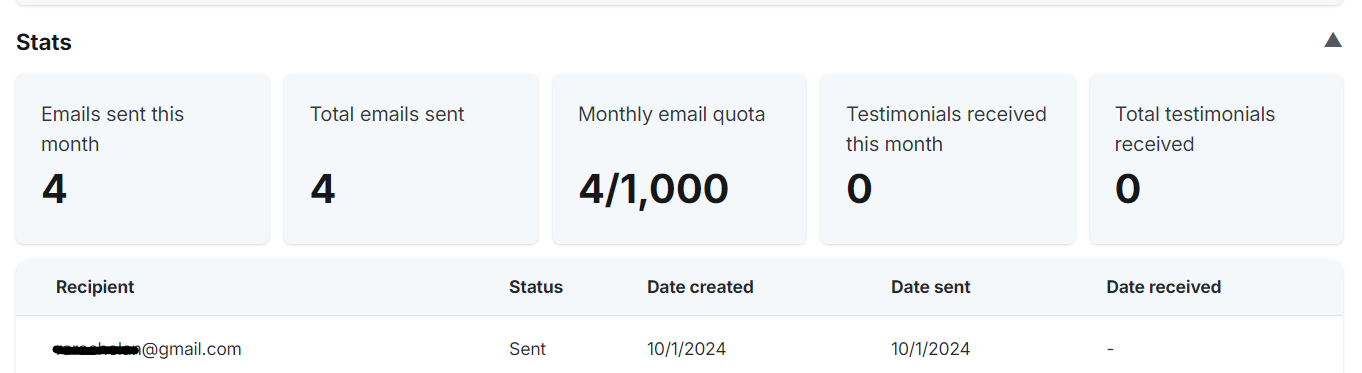
When you hit the monthly invitation cap, the quota tile can show warning styling and a caption.
Space owners get two automated emails about monthly T.E.A. invitation limits, per Space:
Around 80% used — subject like “You're approaching this month's T.E.A. invitation limit”. It shows how many invitations you have used and how many remain. If you hit the cap, new forwards are still logged but are not scheduled until next month.
100% used — subject like “Your T.E.A. monthly invitation limit has been reached”. All invitations for that Space are used for the month; new forwards are still logged but are not scheduled until next month.
Each email type is sent at most once per Space per calendar month. If usage jumps past both thresholds in one batch, only the limit-reached email is sent (no late 80% warning). Both emails include an upgrade call to action and links to learn more or open the Space. Upgrading to raise the limit clears the already-notified state so warnings can send again against the new limit. These are email notifications only; there is no new in-product UI for this.
Monthly quota counters reset at the start of each calendar month.
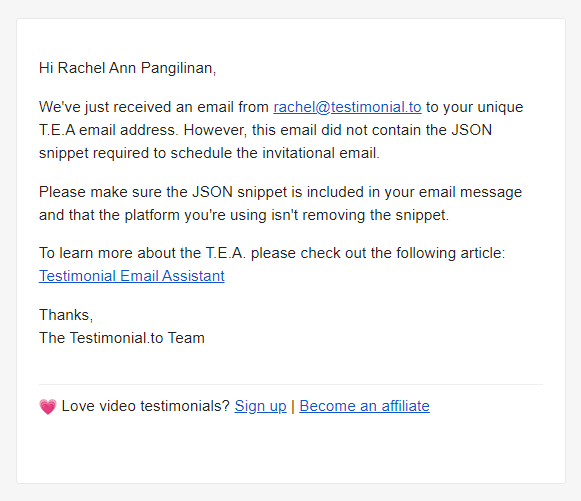
If the snippet or comment did not work, you will also get an email from us.
Send follow-ups to a contact list
On Email & schedule, import a CSV with customer names and email addresses to send follow-up emails. See Schedule emails from CSV import.
Bonus: Email template generator (our free tool)
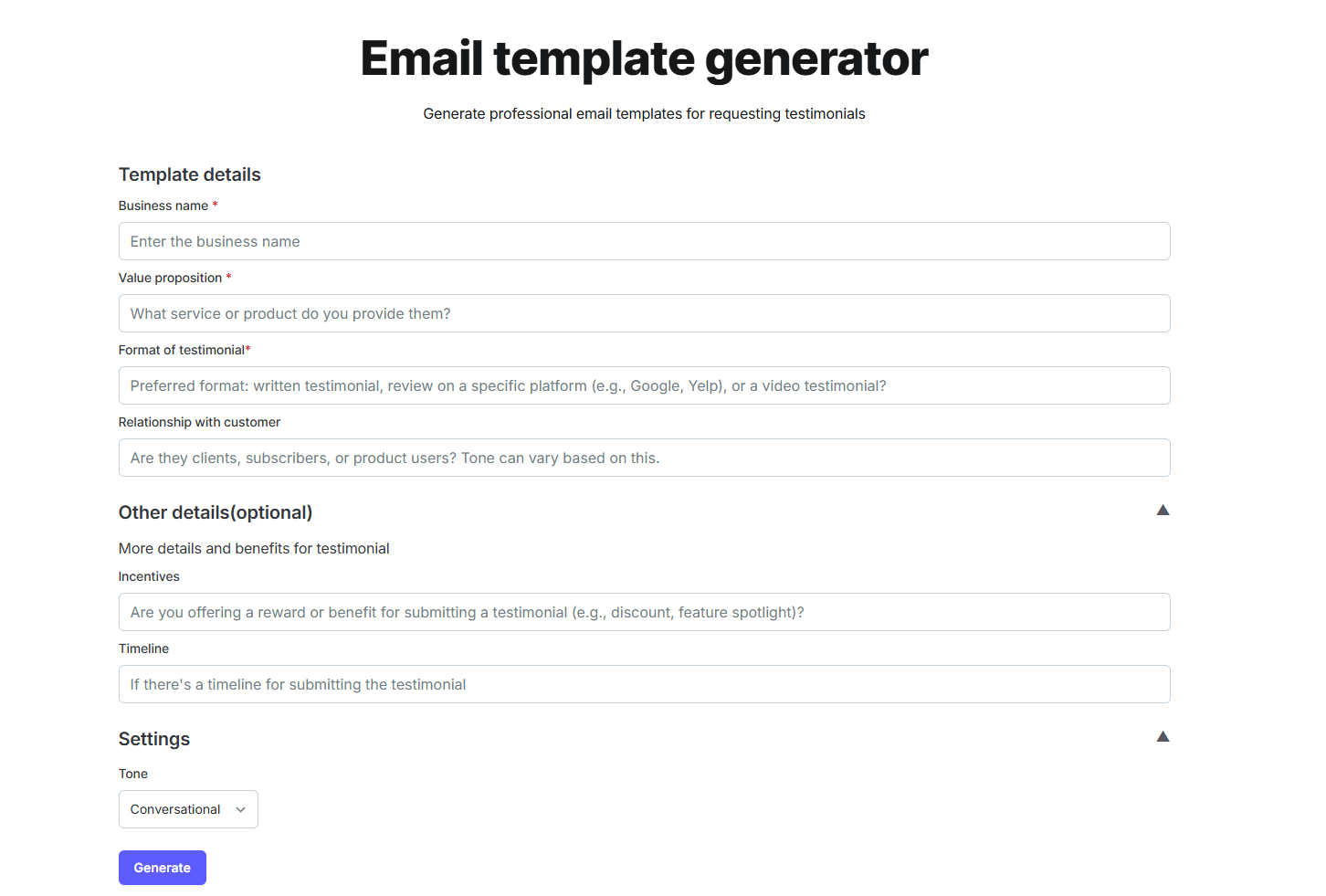
Use the built-in Email Template Generator to draft a testimonial request email.
Missing JSON snippet
Some platforms strip or rewrite HTML in outgoing messages. If the script snippet fails, try another format.
On Shopify, the script snippet is not usable because Shopify modifies it. Use the Comment format and replace the
$PLACEHOLDERvalues with the customer’s details.Send a test email after you update the snippet. The dashboard status should update. You can also use Test send on Email & schedule to preview the invitation in your own inbox without using quota.
If the email address is still not captured, send us a screenshot of the email you sent and the snippet you used.
Note: To test T.E.A. with Gmail, use the pixel snippet. Gmail does not allow custom scripts or comments in the email body.
Need help? Message us in the chat widget.